
Photo Editor with Layers and PSD Support — Private, Fully Offline
A powerful photo and image editor for Windows with layers, masks and PSD support.
Retouch photos, design graphics and open Photoshop files with their layers intact, all without an internet connection.
Edit with adjustment layers, layer styles, type and vector shapes in 8, 16 or 32 bits per channel.
Remove blemishes with healing tools, cut out subjects with smart selection, apply over 120 filters, and export to PNG, JPG, WebP, GIF, animated GIF and APNG, or MP4 video.



Key Features

Photoshop file formats
Opens and saves PSD and PSB files with their layers intact
Layers
Layers, masks, adjustment layers and smart objects
Rich tools selection
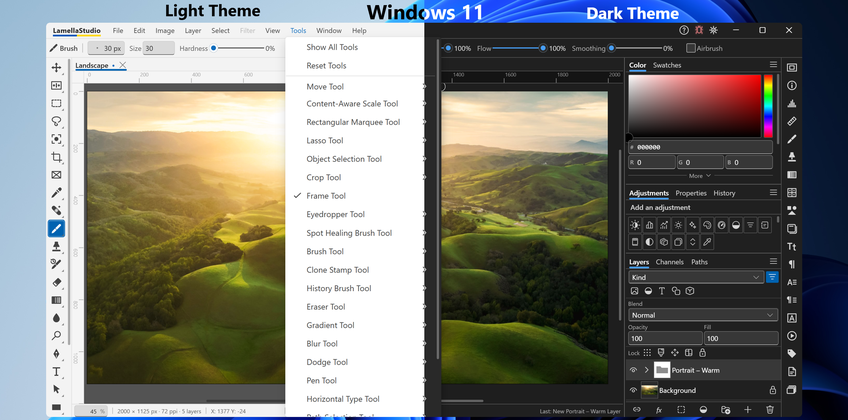
70 tools for selecting, retouching, painting, type and shapes
Rich panels selection
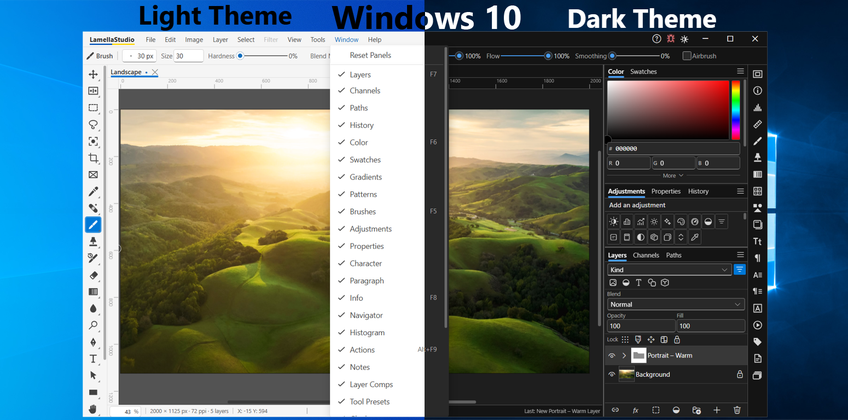
27 panels that dock, tab together or collapse to icons
Rich filters selection
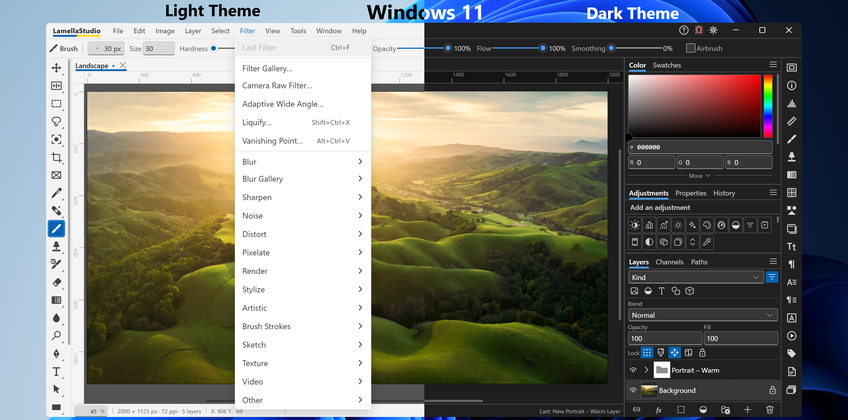
Over 120 filters, most with a live previewFeatures
Familiar workspace
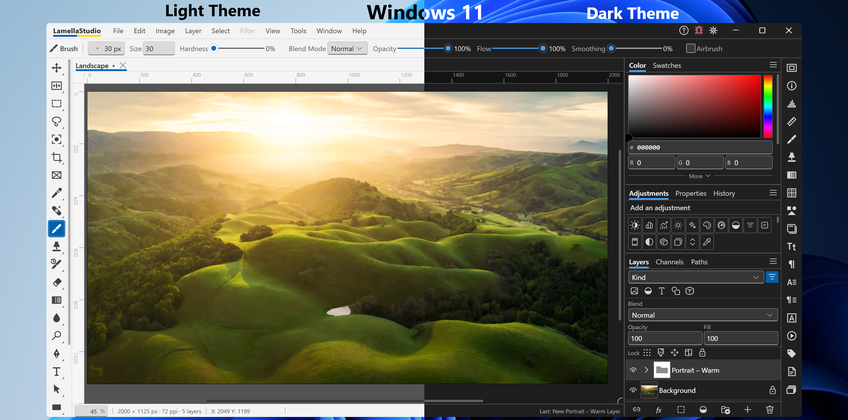
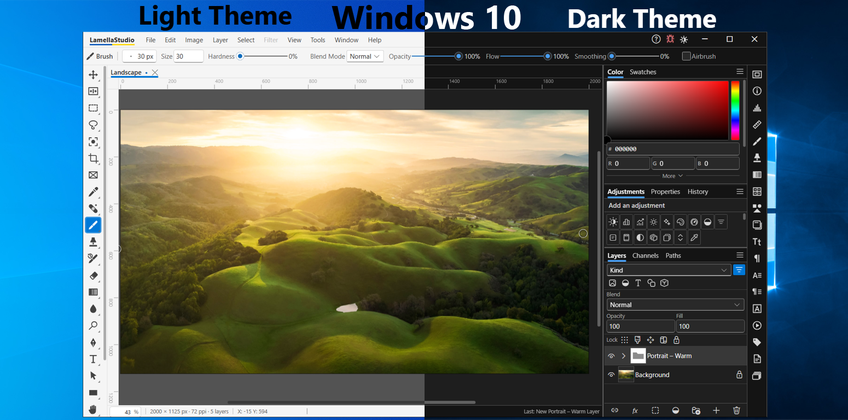
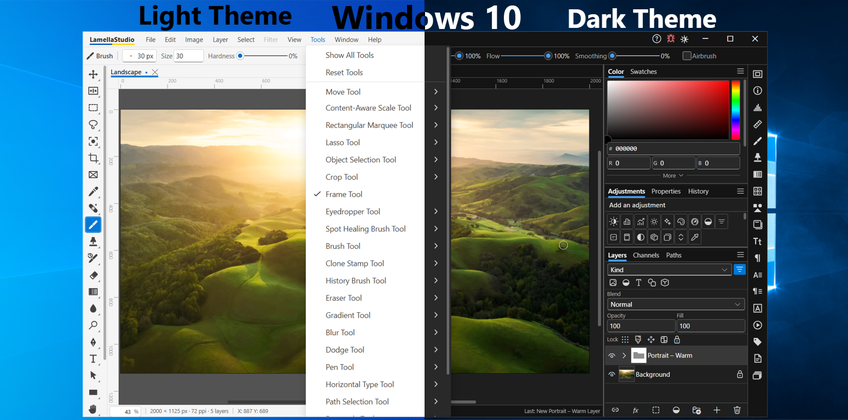
Menu bar, toolbar, options bar and docked panels laid out the way photo editors usually are, so you can start without learning a new layout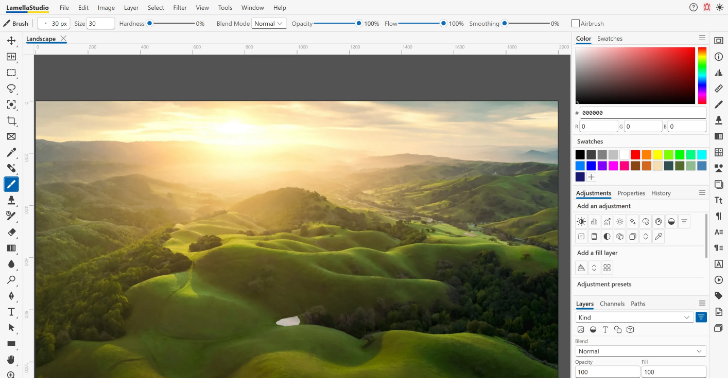
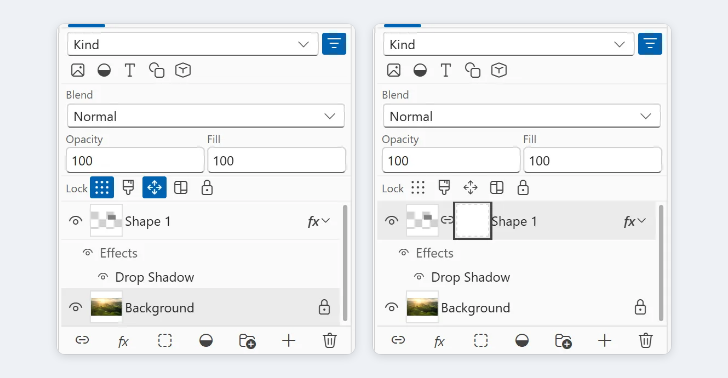
Layers, masks and PSD files
Layer groups, layer and vector masks, clipping masks and smart objects in 8, 16 or 32 bits per channel. PSD and PSB files open and save with their layers, masks, effects and editable type intact70 tools
Selection, crop, healing, brushes, clone stamp, erasers, gradients, pen, type and vector shape tools in 22 toolbar slots, each with its own options bar. See the full list in Tools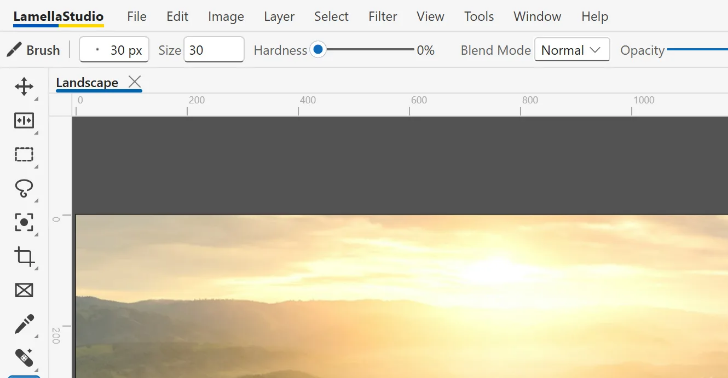
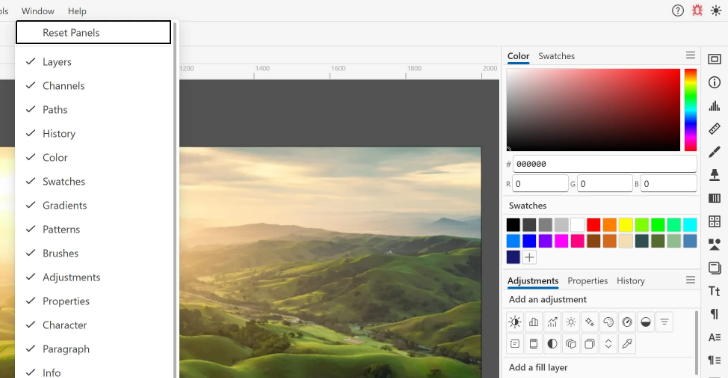
27 dockable panels
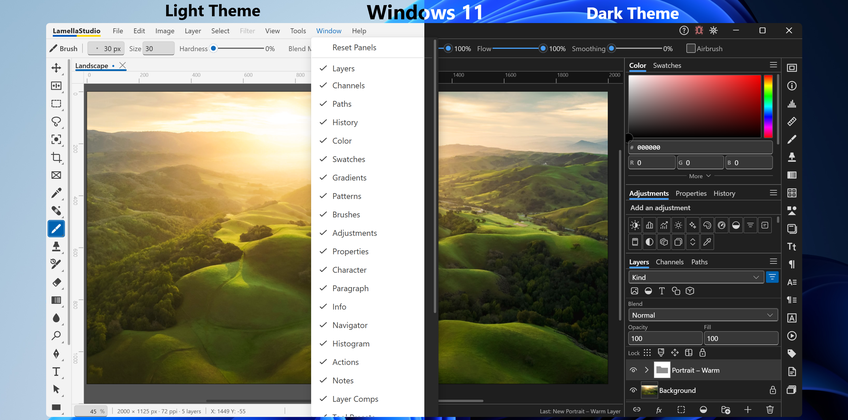
Layers, Channels, Paths, History, Color, Brushes, Properties, Character, Actions and more. Dock them, tab them together, collapse them to icons, or reset the layout in one click. See the full list in PanelsOver 120 filters
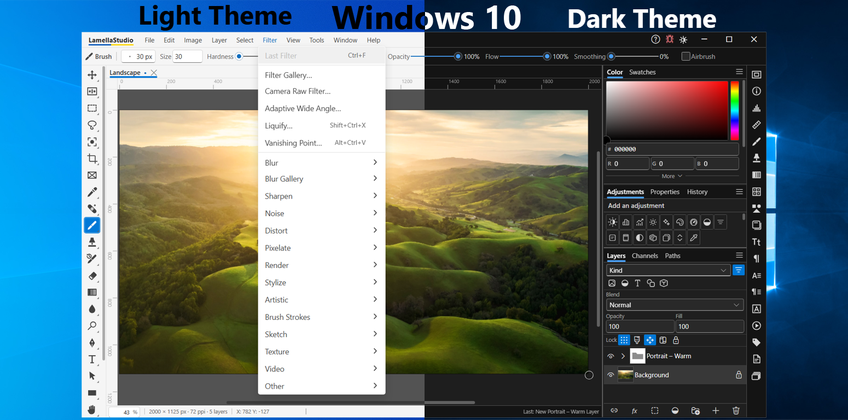
Blur, sharpen, noise, distort, render and stylize filters, artistic and sketch effects in the Filter Gallery, Blur Gallery, Lens Correction and a Camera Raw filter. See the full list in Filters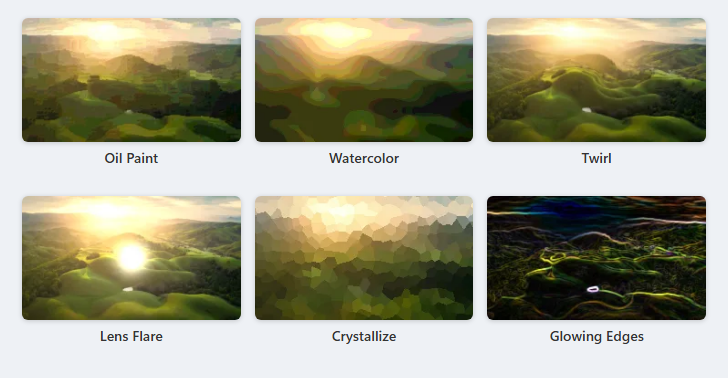
Adjustments and adjustment layers
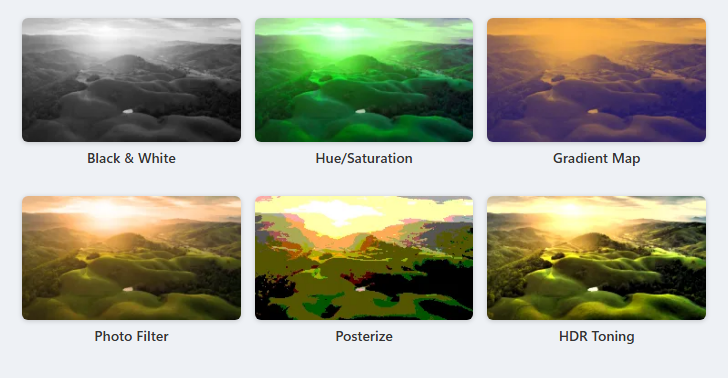
Levels, Curves, Hue/Saturation, Black & White, Color Lookup and 17 more adjustments. Most can be added as an adjustment layer that stays editable. See the full list in AdjustmentsLayer styles
Bevel & Emboss, Stroke, shadows, glows, Satin and overlays with full Blending Options, saved to the Styles panel for one-click reuse. See the full list in Layer Styles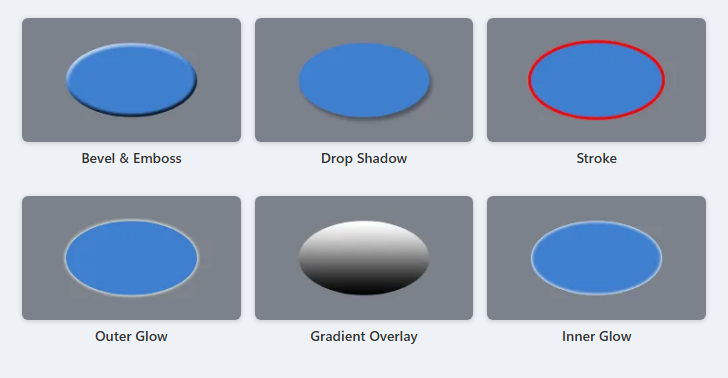
Smart selections
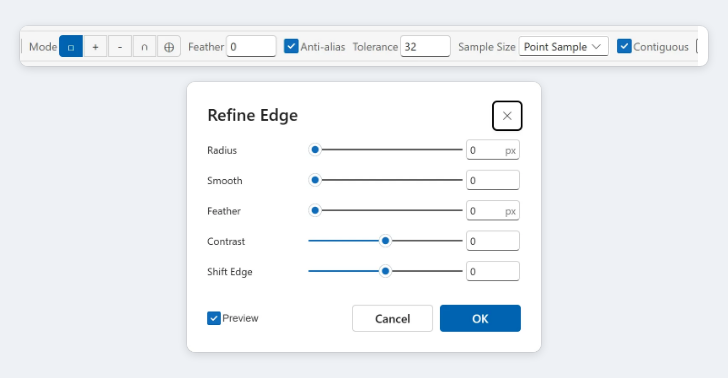
Marquee and lasso tools, Magnetic Lasso, Object Selection, Quick Selection and Magic Wand, finished off with Refine Edge for clean cut-outsBrushes and retouching
A full brush engine with presets and dynamics, Spot Healing, Healing Brush, Patch, Content-Aware Move, Red Eye and Clone Stamp with multiple clone sources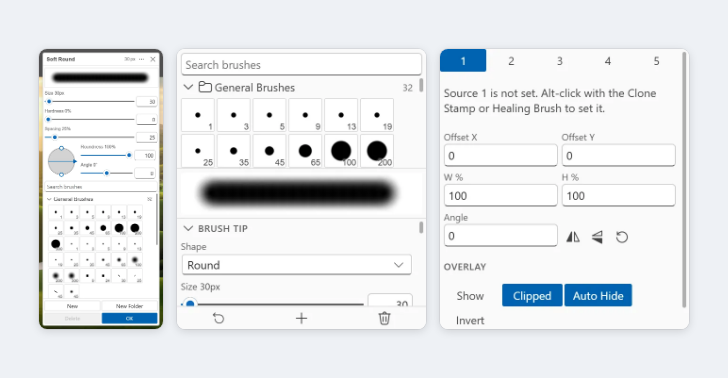
Type and vector shapes
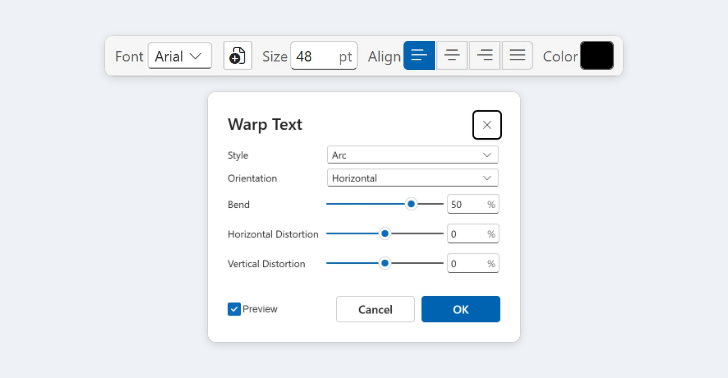
Horizontal and vertical type with character and paragraph styles, Warp Text and glyphs, plus pen tools and vector shapes that stay sharp at any sizeLiquify and transforms
Reshape with Liquify, Puppet Warp, Free Transform, Warp, Content-Aware Scale and Vanishing Point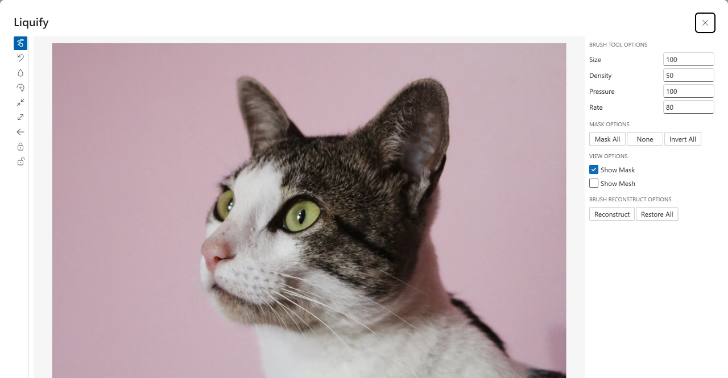
Export to any format
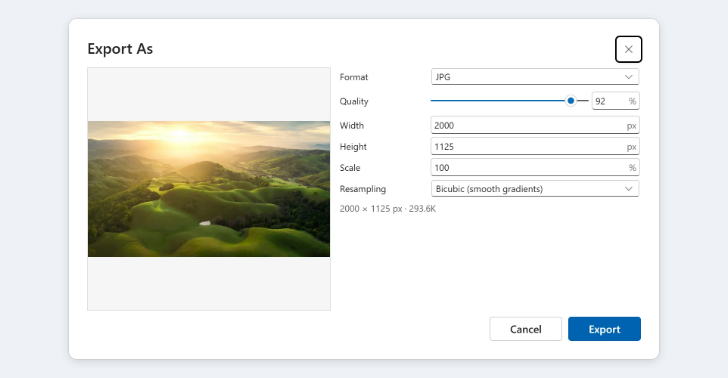
Save as PSD or PSB, export to PNG, JPG, WebP, GIF, BMP, SVG or ICO, and turn animations into animated GIF, APNG or MP4 video. Actions and batch processing handle many files at oncePrivate and fully offline
No account, no ads, no cloud storage and no network access. Your pictures never leave your PC
Modern design
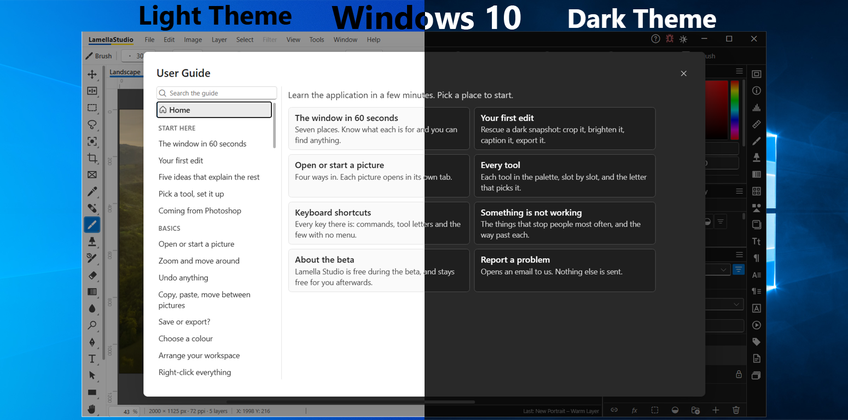
Windows 11 and Windows 10 design based on Windows version with stylish icons, animations and multiple resolution/DPI supportThemes
Dark and Light themes with automatic detection
Multiple languages
Multiple language support** with automatic detectionEfficiency
Low system resource consumption
Tools
70 tools in 22 toolbar slots, each with its own options bar, and most with a single-key shortcut.
Move and artboards
V2
- Move ToolMoves a layer or what is selected. Arrow keys nudge it a pixel.
- Artboard ToolDraws and resizes artboards: several canvases inside one file.
Content-aware transforms
2
- Content-Aware Scale ToolStretches a picture while keeping its detailed parts in shape.
- Puppet Warp ToolBends a layer by dragging pins you place on it.
Marquee selections
M4
- Rectangular Marquee ToolSelects a rectangular area by dragging across it.
- Elliptical Marquee ToolSelects an ellipse or a circle.
- Single Row Marquee ToolSelects one row of pixels, the full width of the picture.
- Single Column Marquee ToolSelects one column of pixels, the full height of the picture.
Lasso selections
L3
- Lasso ToolSelects any shape you draw freehand.
- Polygonal Lasso ToolSelects a straight-sided shape, one click a corner.
- Magnetic Lasso ToolA lasso that clings to the edge you trace along.
Smart selections
W3
- Object Selection ToolDrag a box around a subject and it selects the subject.
- Quick Selection ToolPaints a selection that grows out to the nearest edges.
- Magic Wand ToolSelects every pixel of a similar color to the one you click.
Crop and slice
C4
- Crop ToolTrims the picture to the box you draw.
- Perspective Crop ToolCrops a slanted rectangle and squares it up.
- Slice ToolDivides the picture into slices that export as separate files.
- Slice Select ToolSelects, moves and resizes slices.
Frames
K1
- Frame ToolDraws a frame that clips whatever picture is placed in it.
Sample and measure
I5
- Eyedropper ToolPicks up a color from the picture as the foreground color.
- Color Sampler ToolPins numbered points and reads the color values under each.
- Ruler ToolMeasures a distance and an angle between two points.
- Note ToolPins a written note to a spot on the picture.
- Count ToolPuts numbered markers on things so you can count them.
Healing and red eye
J5
- Spot Healing Brush ToolPaint over a blemish and it is replaced from its surroundings.
- Healing Brush ToolRepairs with texture from a spot you choose, matched to the surroundings.
- Patch ToolRepairs a selected area with pixels from another you drag to.
- Content-Aware Move ToolMoves a selected object and fills the hole it leaves.
- Red Eye ToolDarkens the red pupils that a flash leaves in eyes.
Brushes
B4
- Brush ToolPaints soft-edged strokes in the foreground color.
- Pencil ToolDraws hard-edged lines, with no soft fringe.
- Color Replacement ToolRecolors what you paint over, keeping its light and shade.
- Mixer Brush ToolPaints like wet paint, mixing its color with the canvas.
Clone and pattern stamps
S2
- Clone Stamp ToolPaints with pixels copied from another spot you set first.
- Pattern Stamp ToolPaints with a repeating pattern instead of a color.
History brushes
Y2
- History Brush ToolPaints an earlier state of the picture back in.
- Art History Brush ToolPaints an earlier state back as stylized brush strokes.
Erasers
E3
- Eraser ToolErases to transparency, or to the background color on the Background.
- Background Eraser ToolErases one color as you drag, sparing what differs from it.
- Magic Eraser ToolClick a color to erase every pixel similar to it.
Gradient and fill
G2
- Gradient ToolDrag to fill with a gradual blend between colors.
- Paint Bucket ToolFills an area of similar color with the foreground color.
Blur, sharpen and smudge
R3
- Blur ToolSoftens detail where you paint.
- Sharpen ToolCrisps up detail where you paint.
- Smudge ToolDrags color along, like a finger through wet paint.
Dodge, burn and sponge
O3
- Dodge ToolLightens where you paint.
- Burn ToolDarkens where you paint.
- Sponge ToolMakes color more vivid or more muted where you paint.
Pen and anchor points
P6
- Pen ToolDraws a precise path, point by point, with adjustable curves.
- Freeform Pen ToolDraws a path freehand, and fits smooth curves to it.
- Curvature Pen ToolDraws smooth curves through the points you click.
- Add Anchor Point ToolAdds a point to a path where you click.
- Delete Anchor Point ToolRemoves a point from a path.
- Convert Point ToolTurns a corner point into a curve, or back.
Type
T4
- Horizontal Type ToolAdds text. Click for a line, or drag a box for a paragraph.
- Vertical Type ToolAdds text that runs down the page.
- Horizontal Type Mask ToolMakes a selection in the shape of the text you type.
- Vertical Type Mask ToolMakes a selection shaped like vertical text.
Path selection
A2
- Path Selection ToolSelects and moves a whole path or shape.
- Direct Selection ToolMoves single points and handles of a path.
Vector shapes
U7
- Rectangle ToolDraws a rectangle as a shape that stays sharp at any size.
- Rounded Rectangle ToolDraws a rectangle with rounded corners.
- Ellipse ToolDraws an ellipse or a circle.
- Polygon ToolDraws a polygon with as many sides as you set.
- Parametric Shape ToolDraws a star, spiral, arrow, dot or square from a few numbers.
- Line ToolDraws a straight line of the thickness you set.
- Custom Shape ToolDraws a ready-made shape from your library of shapes.
Pan and rotate view
H2
- Hand ToolDrags the picture around inside the window.
- Rotate View ToolTurns the view without turning the picture itself.
Zoom
Z1
- Zoom ToolZooms in on the spot you click.
Panels
27 panels that dock, tab together, collapse to icons or float, all listed in the Window menu.
Layers and history
6
- LayersThe stack of layers: order, visibility, blend mode, opacity, masks and effects.
- ChannelsThe color channels of the picture, and selections saved as alpha channels.
- PathsThe saved paths, and the work path you are drawing.
- HistoryEvery step you took. Click one to go back to it.
- Layer CompsSaved arrangements of the layers, so one file holds several versions.
- NotesAll the notes pinned to the picture, to read and edit.
Color, brushes and presets
9
- ColorMixes the foreground and background colors.
- SwatchesSaved colors, one click to use.
- GradientsSaved gradients, and where you edit and make new ones.
- PatternsSaved patterns, for fills, fill layers and pattern painting.
- BrushesThe brush tip in full: shape, spacing, dynamics, and your presets.
- Tool PresetsSaved set-ups of a tool, ready to pick again.
- Clone SourceThe source the clone tools copy from, and how it is placed.
- ShapesThe library of ready-made shapes.
- StylesSaved layer styles, one click to apply.
Adjustments and properties
2
- AdjustmentsOne click adds an adjustment layer or a fill layer.
- PropertiesThe settings of whatever is picked: an adjustment, a mask, a shape.
Type
5
- CharacterFont, size, spacing and color of the text.
- ParagraphAlignment, indents and spacing of paragraphs.
- Character StylesSaved text formatting to apply to characters.
- Paragraph StylesSaved formatting to apply to whole paragraphs.
- GlyphsEvery character in the font, to insert into text.
Info and navigation
4
- InfoReadouts for what is under the pointer: color values and position.
- NavigatorA small view of the whole picture. Drag its box to move around.
- HistogramA graph of how the tones of the picture are spread.
- Measurement LogA table of the measurements you record.
Automation
1
- ActionsRecords a series of commands and plays it back on other pictures.
Filters
122 filters in 14 groups. Most open a dialog with a live preview, and the Filter Gallery lets you browse them side by side.
Blur
11
- AverageFills the area with its one average color.
- BlurSoftens slightly.
- Blur MoreA stronger version of the plain blur.
- Box BlurBlurs by averaging each pixel with its square of neighbors.
- Gaussian BlurThe standard smooth blur, by a radius you set.
- Lens BlurBlurs as a camera lens does, with shaped highlights.
- Motion BlurStreaks the picture along one direction, as if it moved.
- Radial BlurBlurs around a center, as a spin or a zoom.
- Shape BlurBlurs through a shape: circle, square, diamond or star.
- Smart BlurSmooths flat areas and keeps the edges sharp.
- Surface BlurSmooths surfaces without crossing edges: good for skin.
Blur Gallery
5
- Field BlurA blur that grades from one pin to another across the picture.
- Iris BlurKeeps an oval sharp and blurs everything outside it.
- Tilt-ShiftKeeps a band sharp and blurs above and below: the miniature look.
- Path BlurMotion blur that follows a curve.
- Spin BlurBlurs around a point, like a turning wheel.
Sharpen
6
- SharpenSharpens slightly.
- Sharpen EdgesSharpens only the edges, leaving smooth areas alone.
- Sharpen MoreA stronger version of the plain sharpen.
- Smart SharpenSharpens with control over the kind of blur it undoes.
- Unsharp MaskThe classic sharpener: amount, radius and a threshold to spare noise.
- Shake ReductionReduces the blur left by a camera that moved.
Noise
5
- Add NoiseAdds grain, in color or in gray.
- DespeckleRemoves specks while keeping edges.
- Dust & ScratchesRemoves small spots and hairlines.
- MedianReplaces each pixel with the middle value of its neighbors.
- Reduce NoiseSmooths grain and color speckle while holding on to detail.
Distort
15
- DisplaceShifts pixels by the light and dark of a second picture.
- GlassAs if seen through textured glass.
- Ocean RippleFine random ripples, as if under water.
- PinchSqueezes toward the center, or bulges out from it.
- Polar CoordinatesWraps the picture around a center, or unwraps it.
- RippleRegular waves across the picture.
- ShearBends the picture sideways along a curve.
- SpherizeWraps the picture over a ball.
- KaleidoscopeMirrors a wedge of the picture around a center.
- TwirlSpins the middle more than the edges.
- WaveWaves of several sizes at once, each one adjustable.
- ZigZagRipples spreading from the center, like a stone in a pond.
- Diffuse GlowAdds a soft glow to the bright areas.
- Lens CorrectionFixes a lens: bent lines, color fringes, dark corners, tilt.
- Adaptive Wide AngleStraightens the bulge of a wide-angle or fisheye lens.
Pixelate
7
- Color HalftoneColored dots, as in an enlarged print.
- CrystallizeBreaks the picture into flat-colored crystals.
- FacetGroups similar pixels into small flat patches.
- FragmentFour offset copies, for a shaken look.
- MezzotintRandom dots, lines or strokes, in pure colors.
- MosaicLarge square blocks of one color each.
- PointillizeRandom dots of color, as in a pointillist painting.
Render
7
- CloudsFills with soft clouds in the foreground and background colors.
- Difference CloudsClouds blended with the picture as a difference.
- FibersFills with woven fibers in the two colors.
- FlameDraws flames along the active path — make or pick a path first.
- Lens FlareAdds the flare of a bright light shining into a lens.
- Lighting EffectsLights the picture with lamps you place, optionally as a relief.
- Picture FrameDraws a frame with a matte around the picture.
Stylize
10
- DiffuseShuffles pixels a little, for a soft, frosted look.
- EmbossMakes the picture look pressed into gray metal.
- ExtrudePushes the picture out as blocks or pyramids.
- Find EdgesDraws the edges as dark lines on white.
- Oil PaintTurns the picture into thick, swirling brushwork.
- SolarizeMixes a negative with a positive, as a film fogged in developing.
- TilesCuts the picture into square tiles and nudges each.
- Trace ContourOutlines where brightness crosses a level you set.
- WindStreaks blown sideways from the edges.
- Glowing EdgesEdges as neon lines on black.
Artistic
15
- Colored PencilCrosshatched pencil strokes over a paper color.
- CutoutA few flat shapes, as if cut from colored paper.
- Dry BrushSimplified, as if painted with an almost dry brush.
- Film GrainEven grain, heavier in the shadows.
- FrescoShort, dabbed strokes, as in a wall painting.
- Neon GlowTints the picture and adds a colored glow.
- Paint DaubsPainted with a brush of the kind and size you pick.
- Palette KnifeFlat patches of color, as laid on with a knife.
- Plastic WrapAs if coated in shiny plastic.
- Poster EdgesFewer colors, with dark lines along the edges.
- Rough PastelsPastel strokes over a textured ground.
- Smudge StickDark areas smeared with short diagonal strokes.
- SpongeBlotchy texture, as if dabbed with a sponge.
- UnderpaintingA loose painting on a textured canvas.
- WatercolorSimplified washes, darker where the tone changes.
Brush Strokes
8
- Accented EdgesEmphasizes the edges, lit like chalk or dark like ink.
- Angled StrokesDiagonal strokes, one way in the lights and the other in the darks.
- CrosshatchAdds pencil-like crosshatching while keeping the detail.
- Dark StrokesShort dark strokes in the shadows, long white ones in the lights.
- Ink OutlinesRedraws the picture with fine ink lines over its detail.
- SpatterAs if sprayed through a spattering airbrush.
- Sprayed StrokesAngled, sprayed strokes in the dominant colors.
- Sumi-eSoft, blurred edges in rich black, as with a wet brush.
Sketch
14
- Bas ReliefA low carving, lit from one side, in the two colors.
- Chalk & CharcoalChalk in the lights and charcoal in the darks.
- CharcoalA smudged charcoal drawing on paper.
- ChromeA polished chrome surface.
- Conté CrayonDense crayon darks and lights over a textured ground.
- Graphic PenFine straight ink strokes on paper.
- Halftone PatternA halftone screen of dots, lines or circles.
- Note PaperAs if built from embossed handmade paper.
- PhotocopyA photocopy: dark edges, with the midtones dropped.
- PlasterMolded in plaster and tinted with the two colors.
- ReticulationClumped grain in the shadows, fine grain in the lights.
- StampA rubber or wood stamp: two flat colors.
- Torn EdgesRagged, torn paper shapes in the two colors.
- Water PaperBlotchy daubs that bleed along the paper's fibers.
Texture
6
- CraquelureA fine network of cracks, as on old plaster.
- GrainGrain of many kinds: soft, clumped, speckled, stippled and more.
- Mosaic TilesSmall tiles with grout between them.
- PatchworkSquares raised to different heights, each in its main color.
- Stained GlassCells of one color, outlined in the foreground color.
- TexturizerPresses a texture into the picture: brick, burlap, canvas or sandstone.
Video
2
- De-InterlaceSmooths the combed lines of a frame grabbed from interlaced video.
- NTSC ColorsTones down colors too strong for a television signal.
Other
11
- CustomYour own filter, from a grid of numbers.
- Color to AlphaMakes one color transparent.
- Normal MapTurns brightness into a normal map for 3D lighting.
- RepeatTiles the picture in rows and columns.
- High PassKeeps the fine detail and grays out the rest.
- MaximumSpreads the light areas and shrinks the dark.
- MinimumSpreads the dark areas and shrinks the light.
- OffsetShifts the picture, wrapping it around or filling what is left.
- ParticlesScatters drifting particles over the picture.
- HSB/HSLRewrites the color as hue, saturation and brightness or lightness, and back.
- Camera Raw FilterA photographer's workspace: light, color, curves, mixer, grading, detail, lens, geometry and effects.
Adjustments
22 image adjustments. Most can also be added as an adjustment layer that you can edit, mask or switch off at any time.
Light and contrast
4
- Brightness/ContrastMakes the picture lighter or darker, flatter or punchier.
- LevelsSets the black point, white point and midtones from a histogram.
- CurvesReshapes the tones with a curve: the most exact control of contrast.
- ExposureBrightens or darkens as a camera exposure would.
Color
7
- VibranceStrengthens dull colors more than vivid ones.
- Hue/SaturationShifts colors around the wheel, and makes them stronger or grayer.
- Color BalanceTints shadows, midtones and highlights toward a color.
- Black & WhiteTurns to gray, with control over how dark each color becomes.
- Photo FilterTints the picture like a colored filter over the lens.
- Channel MixerRebuilds each color channel from a mix of all three.
- Color LookupApplies a ready-made color grade.
Tones and effects
5
- InvertSwaps every color for its opposite, as a negative.
- PosterizeReduces the picture to a few flat levels of tone.
- ThresholdMakes every pixel pure black or pure white.
- Gradient MapMaps dark to light onto the colors of a gradient.
- Selective ColorAdjusts the ink mix within one family of colors at a time.
Shadows and HDR
2
- Shadows/HighlightsLifts the shadows and tames the highlights separately.
- HDR ToningCompresses a wide range of light into a punchy, detailed look.
Quick color fixes
4
- DesaturateRemoves all color, leaving the tones.
- Replace ColorPicks one color in the picture and changes it to another.
- Match ColorMakes the colors of one picture match another.
- EqualizeSpreads the tones evenly from black to white.
Layer Styles
10 layer effects plus Blending Options. Styles stay editable and can be saved to the Styles panel.
Effects
10
- Bevel & EmbossRaises or sinks the edges, as if lit from one side.
- StrokeAn outline around the layer's shape.
- Inner ShadowA shadow inside the edges, as if the layer were cut out.
- Inner GlowLight spreading inwards from the edges.
- SatinA soft sheen folded across the inside of the shape.
- Color OverlayCovers the layer with one color.
- Gradient OverlayCovers the layer with a gradient.
- Pattern OverlayCovers the layer with a pattern.
- Outer GlowLight spreading outwards from the edges.
- Drop ShadowA shadow behind the layer, lifting it off the page.
Blending
1
- Blending OptionsHow the layer itself is blended: its mode, opacity, channels and Blend If.
Screenshots
** - currently supported: English (default and application can be forced to use it), French, German, Polish, Ukrainian, Russian